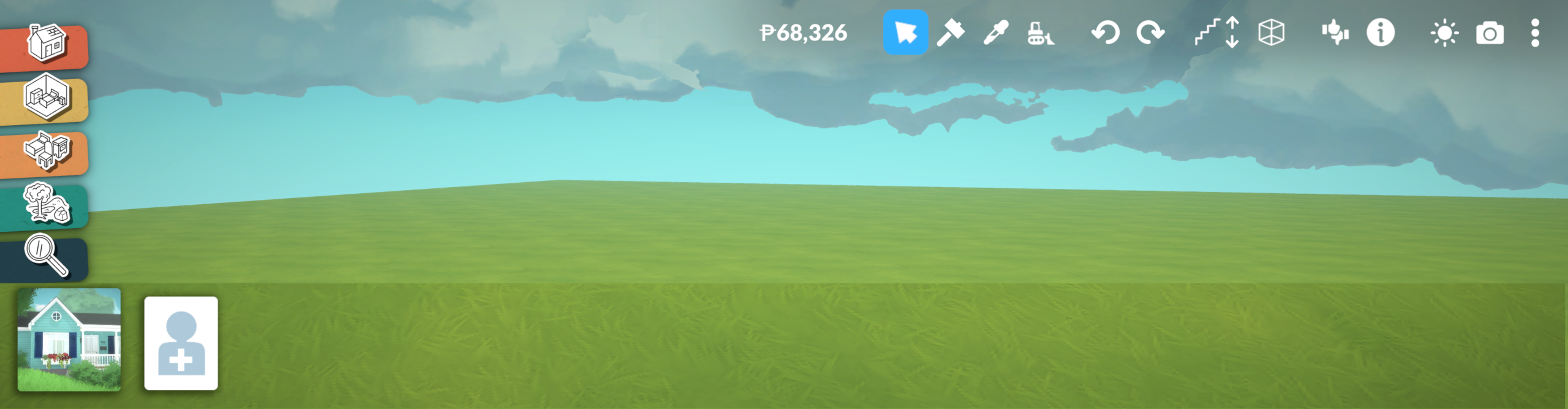
ⓘ Hover on the image to learn what each section does
Learn how Build Mode works in Paralives, including tool categories, navigation, shortcuts, object controls, grid mode, and useful beginner building tips.
To open Build Mode, click the house icon in the bottom-left corner of the screen. You can also press B on your keyboard as a shortcut.
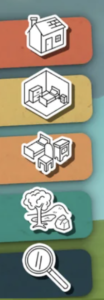
Each tab in the side menu opens its own objects, with submenus for more specific categories.
Build (B): Tools for the main structure of your build, including walls, windows, stairs, roofs, and fences.
Rooms: Browse items by room type, such as kitchen, bathroom, bedroom, or living room.
Furnishings (O): Browse items by object type, such as furniture, lighting, appliances, decor, and clutter.
Terrain Tools: Landscape and shape outdoor areas with nature items, terrain sculpting, painting, and flattening tools.
Search (Ctrl + F): Find specific items quickly without browsing every category.

Cursor Mode selects an item so you can move, resize, rotate, or edit it.
Sledgehammer (K) deletes anything highlighted in red, such as walls, furniture, or other build items.
Pipette (I) shows the selected item information and copies it so you can place another one.
Bulldoze clears everything on the lot. This cannot be undone, so use it carefully.
Undo (Ctrl + Z) reverses the last action.
Redo (Ctrl + Y) restores the last action you undid.
Levels (Page Up / Page Down) moves the view up or down between floors.
View (Home / End) changes the wall visibility mode, controlling how walls are shown on screen.
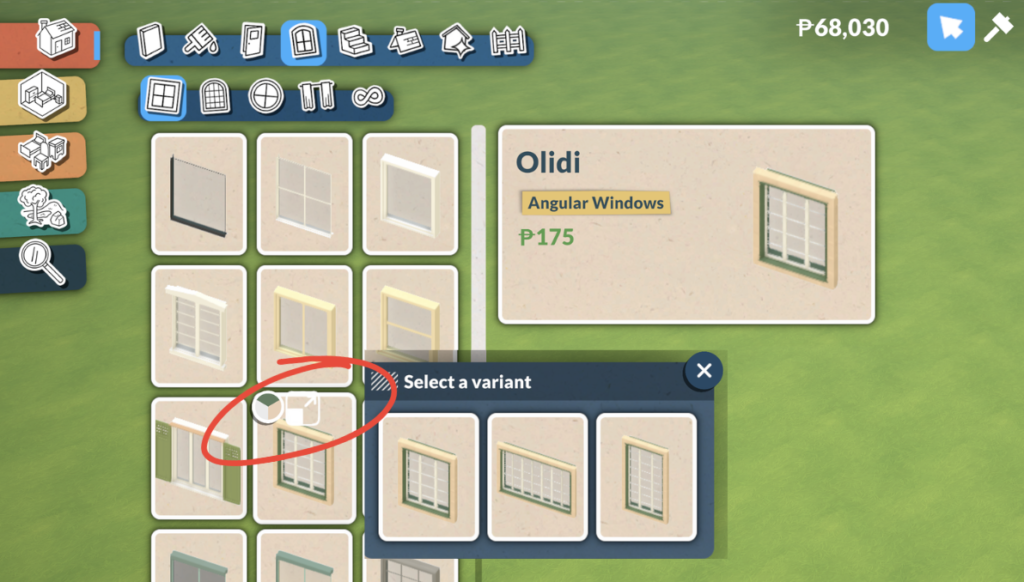
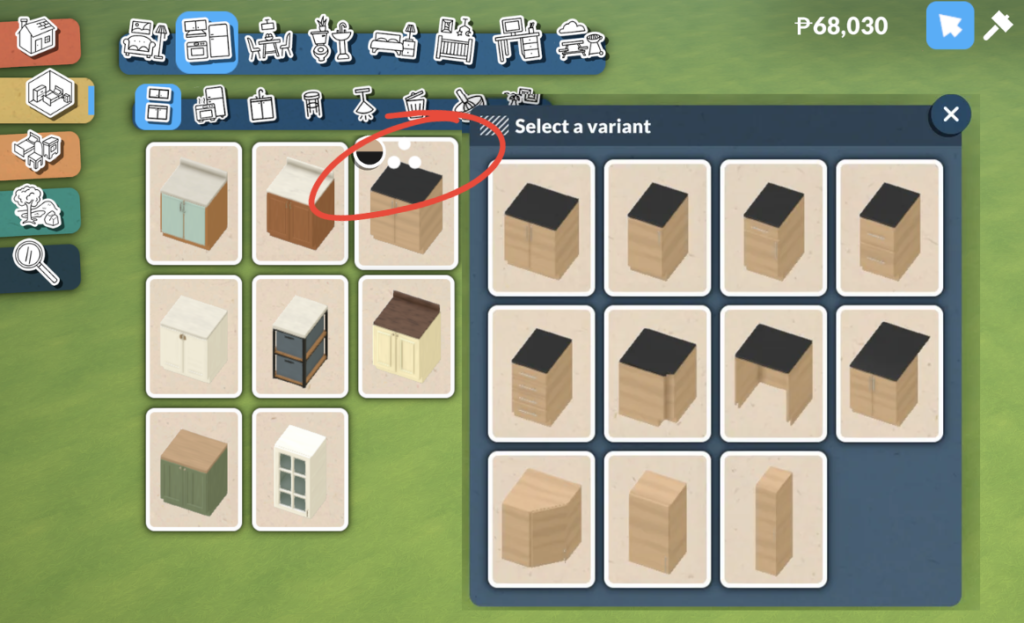
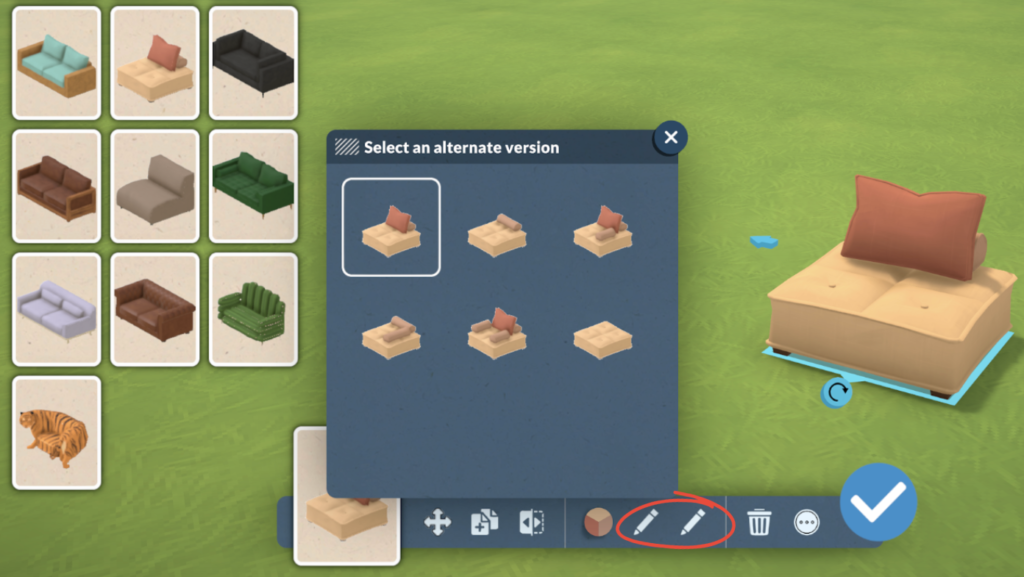
Some Build Mode items have extra versions you can choose from. These variants may change the item’s shape, layout, size, or related style, depending on the object.
You may find variants in two places:
In the catalog
Some item cards show small symbols or dots. Clicking these opens a variant gallery, where you can choose from related versions of that item.
From the item menu
After placing or selecting an item, check the item toolbar at the bottom. Some objects have a pencil icon that lets you choose an alternate version of the selected item.
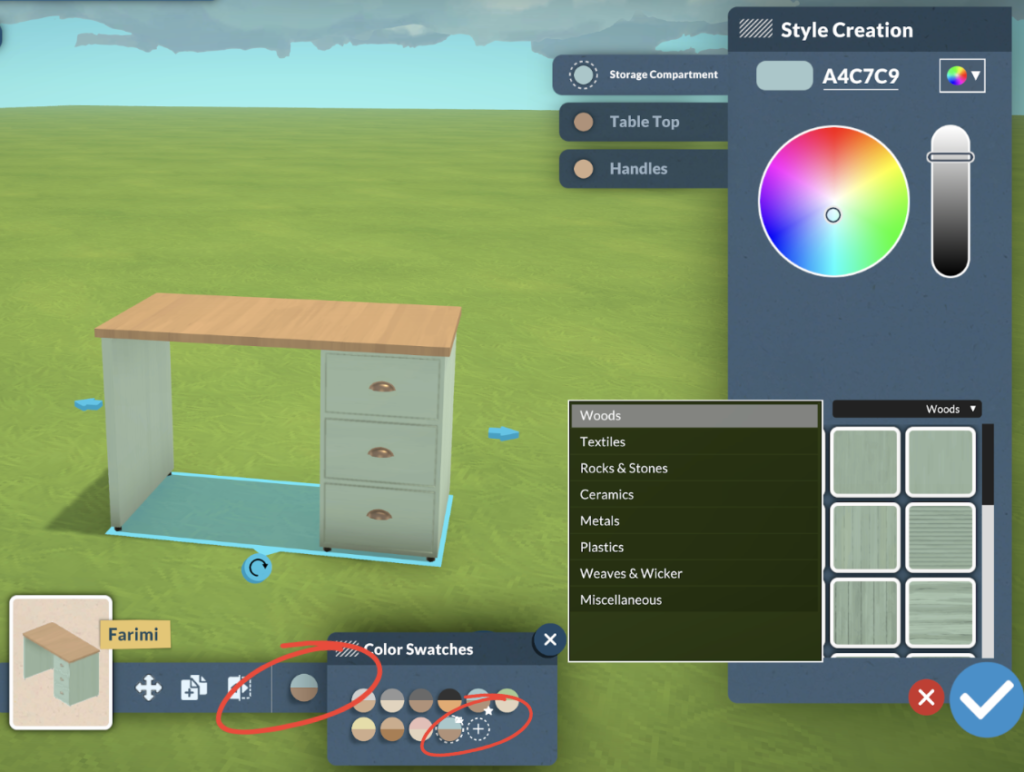
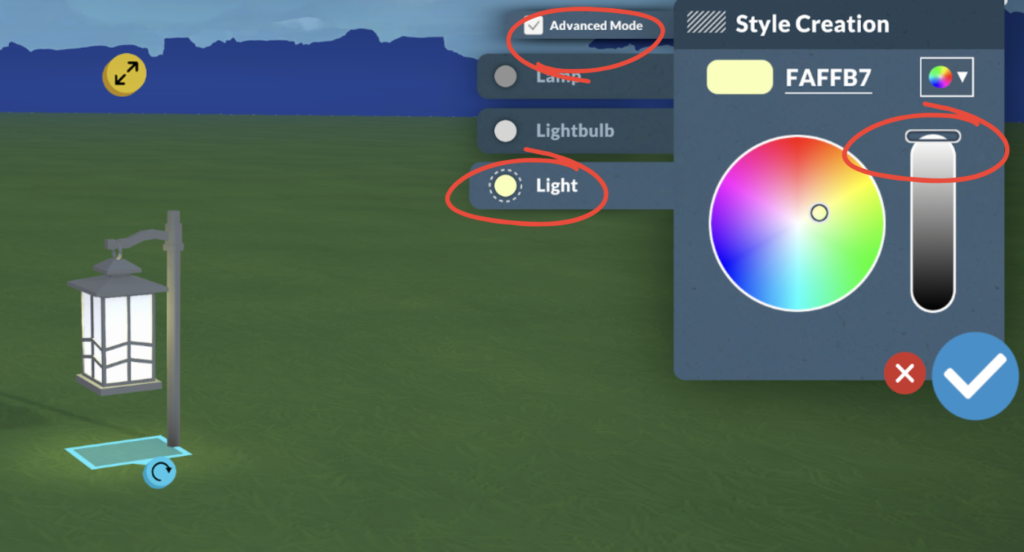
Item swatches let you customise the look and details of selected objects. After selecting an item, open the swatch options to change colours, materials, or style variations. Some objects also include extra settings. For example, lights may let you adjust the light colour and brightness.
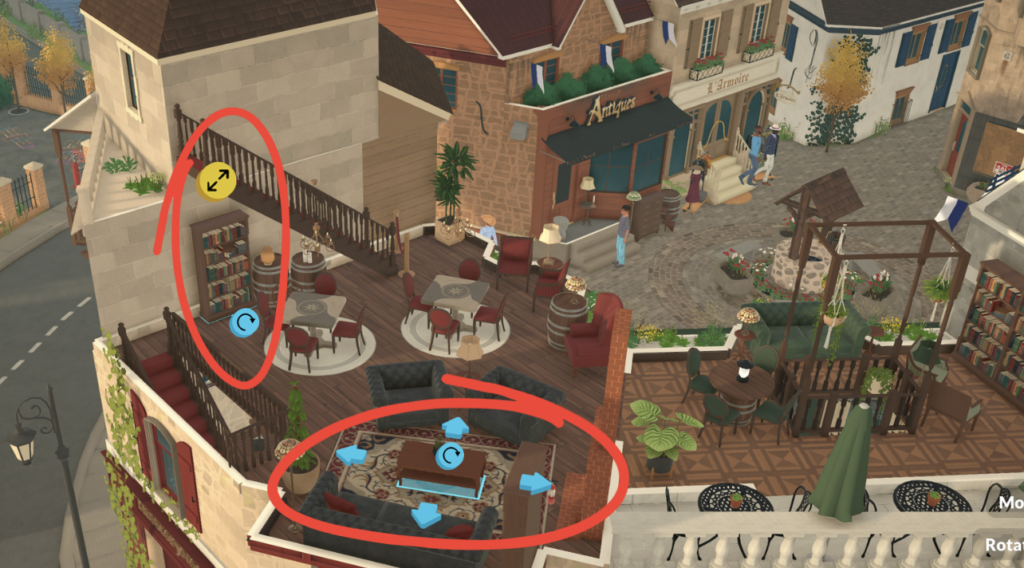
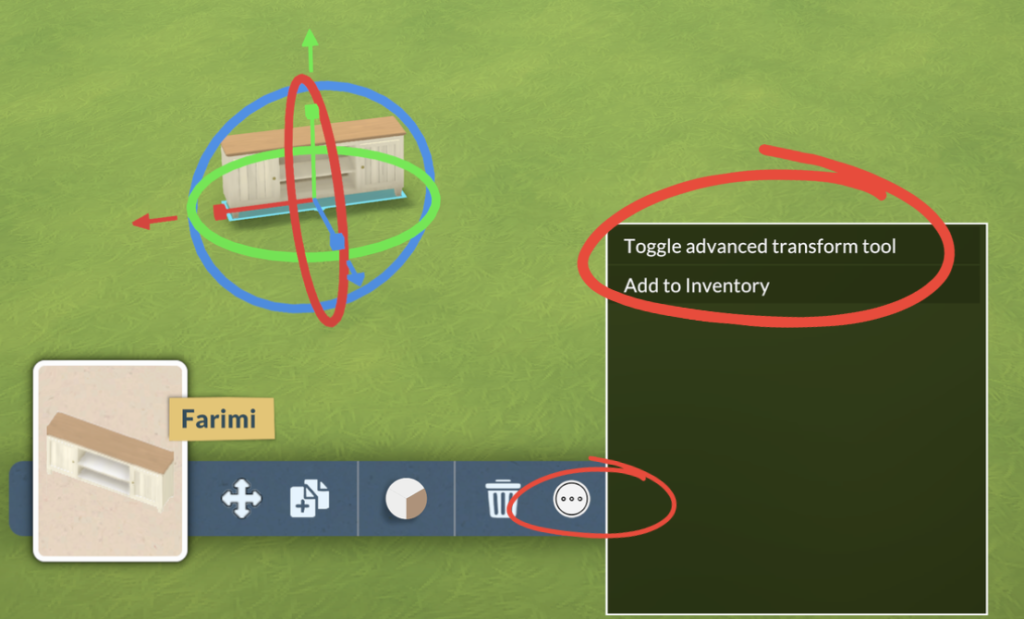
When you select an item, Paralives may show resize controls around it. Depending on the object, you may see handles or arrows that let you adjust the item’s size horizontally, vertically, or in a specific direction.
Some items have simple resize controls, while others need the Advanced Transform Tool if you want more detailed size and position changes. You can open the Advanced Transform Tool from the item toolbar at the bottom of the screen, or press * on your keyboard to turn it on or off.
Action | Shortcut | What it does |
|---|---|---|
Move item horizontally | Select an item, then click it again | Lets you move the item sideways across the lot. |
Move item vertically | Hold Shift while moving an object | Lets you move the item up or down. |
Resize evenly | Hold Shift while resizing | Changes the size on both sides at the same time. |
Rotate 90 degrees | X | Rotates the item in 90-degree steps. |
Rotate 45 degrees | , or . | Rotates the item 45 degrees counterclockwise or clockwise. |
Advanced Transform Tool | * | Turns the advanced transform widget on or off. |
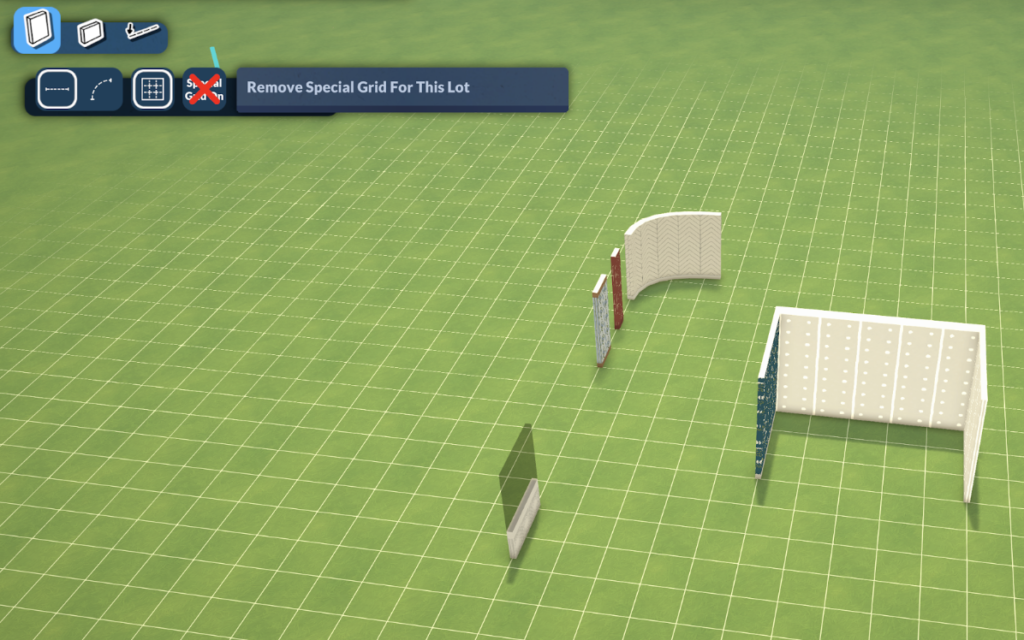
When you are placing walls or fences, the grid helps you line things up and create a cleaner floor plan. You can use the grid or turn it off when you want more freedom with placement.
When grid mode is on, walls and fences follow the grid lines. Press G to turn the grid on or off.
You can also hold Shift while placing or adjusting walls and fences to use a smaller grid size. This helps you create more detailed floor plans while still keeping things lined up.
Changing the Grid Direction
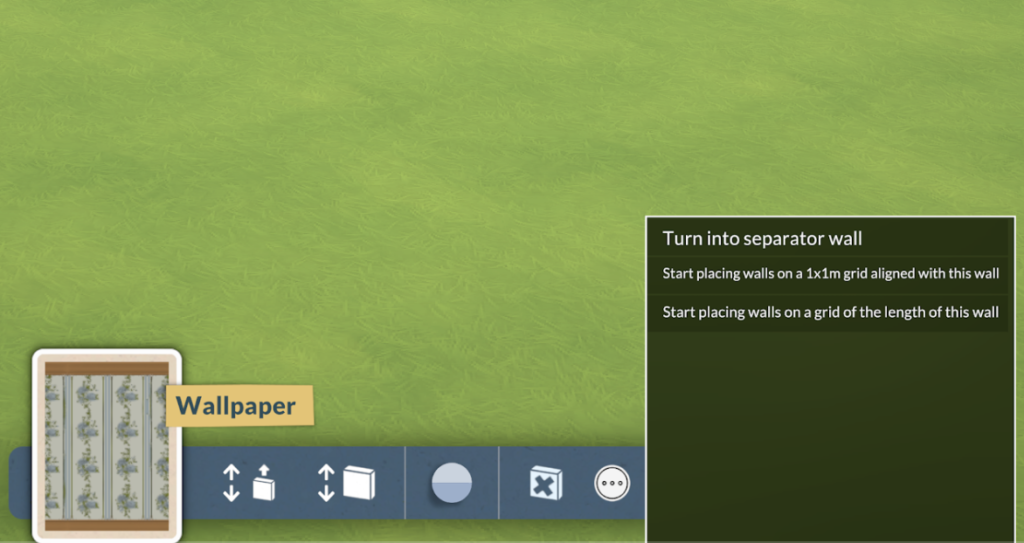
If you want the grid to follow the direction of an existing wall, select the wall and choose: Start placing walls on a 1x1m grid aligned with this wall
Creating a Custom Grid Size
You can also make the grid size match the length of a wall. First, build a wall, then select that wall piece, open the three-dot menu, and choose: Start placing walls on a grid of the length of this wall
These shortcuts help you edit items, move between floors, control the grid, and adjust objects faster in Build Mode.
Note: Some shortcuts can be changed in the game settings. Check Settings → Key Bindings if a shortcut does not work or you want to assign a different key.
Navigation
Shortcut | Action |
|---|---|
B | Opens Build mode / wall mode |
Esc | Cancels placement / leaves current mode |
O | Opens the furnishings catalog |
Ctrl + F | Opens catalog search |
Page Up / Page Down | Moves the view up or down between floors |
Home / End | Changes wall visibility |
Ctrl + Z | Undo |
Ctrl + Y | Redo |
F5 | Quick save |
Selecting and Editing
Shortcut | Action |
|---|---|
I | Hover on the item and you get the item information |
I + click the item | Multiple the item |
Ctrl + V | Duplicates the selected item, including changes you have made |
K | Removes the selected item |
Delete | Sells the selected item |
Moving, Resizing, and Rotating Items
Shortcut | Action |
|---|---|
Select item, then click it again | Moves the item horizontally |
Hold Shift while moving an object | Moves the item vertically |
Hold shift while resizing an object | Resizes both sides at the same time |
X | Rotates the item 90 degrees |
, or . | Rotates the item 45 degrees counterclockwise or clockwise. |
* | Turns the Advances Transform Tool on/off |
Grid and Placement
Shortcut | Action |
|---|---|
G | Toggles the grid on or off |
Hold Shift while the grid is on | Uses a smaller grid |
Hold Alt while placing an item | Places the item without showing placement lines |